Authorised LAUNCH Dealer Australia

FREQUENTLY ASKED QUESTIONS
Before You Order
How do I know if the product is compatible with my vehicle or setup?
Please make sure the product is compatible before placing your order. If you’re unsure, feel free to contact our team with your vehicle details or VIN, and we’ll help you check.
What is included in the product? Do I need extra modules or accessories?
Each product listing outlines what is included. Some tools may require additional modules or subscriptions depending on your needs. If you’re unsure, just ask us before ordering.
Are your prices inclusive of GST?
Yes, all prices displayed on our website are inclusive of GST unless stated otherwise.
Payments & Orders
What payment methods do you accept?
We only accept PayPal at the moment. All transactions are processed securely.
Will I receive a tax invoice?
Yes, a tax invoice will be issued after your order is confirmed.
Can I change or cancel my order after placing it?
If your order has not been dispatched yet, we may be able to assist. Please contact us as soon as possible. Once the order has been shipped, changes are no longer possible.
General Information
We’ve put together answers to some of the most common questions about LAUNCH products, purchasing, warranty and local support. If you need further assistance or can’t find what you’re looking for, our team is always happy to help.
Can I receive warranty coverage or after-sales support if I purchase Launch products from online sellers or unauthorised dealers?
We’re unable to offer warranty coverage or technical support for products that were not purchased directly from us or through our authorised dealers. For assistance, please contact the original seller. Alternatively, you may reach out to Launch headquarters via email at overseas.service@cnlaunch.com.
Bypassing the FCA Secure Gateway – FIAT, ALFA ROMEO, CHRYSLER, DODGE & MASERATI
In 2018, Fiat Chrysler Automobiles (FCA) introduced a security system known as the Secure Gateway (SGW) across its vehicle range. This system applies to Alfa Romeo, Fiat, Chrysler, Jeep, Dodge, RAM, and Maserati vehicles.
The FCA Secure Gateway restricts access from non-authorised diagnostic tools, allowing them only to read fault codes while blocking advanced functions and system communication. To gain full diagnostic access, scan tools must be registered and authenticated through FCA’s approval system.
As a professional aftermarket diagnostic brand, LAUNCH holds an active FCA scan tool licence agreement, enabling compatible LAUNCH tools to support Secure Gateway access. Once authentication is completed and the SGW is unlocked, LAUNCH scan tools provide the same diagnostic capabilities available on FCA vehicles without SGW protection.
Registration is required only once, followed by a yearly subscription, with no limitation on the number of vehicles serviced.
FCA Registration Requirements for LAUNCH Scan Tools
Before registration, ensure that your scan tool’s APK/software is updated to the latest version.
For AUSCAN, PRO, PRO3, and PAD V
Register via AutoAuth: https://webapp.autoauth.com
For EuroTab I and EuroTab II
Register through FCA Technical Information: https://www.technicalinformation.fiat.com/tech-info-web/web/index.do
Need Assistance?
For further information or support, please contact: service_launch@yahoo.com
X431 Vehicle Coverage
Please visit: https://qcar.x431.com/qcar/#/pc/index?q=e30%3D
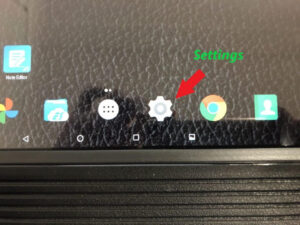
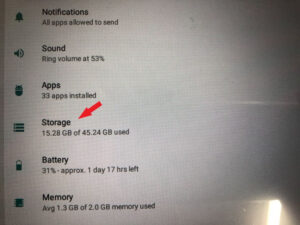
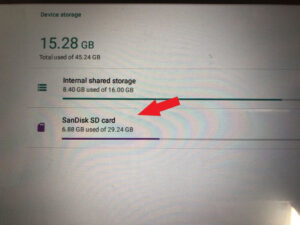
SCANPAD Out of Storage Fix
- Go to Settings of Table.
- Press Storage.
- Press Sandisk SD card.
- Press Icon on the top right corner.
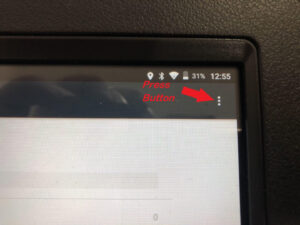
- Format SD card as Internal.
- Follow the prompt, move all the files to SD card.
- DONE!
- Go to Settings of Table.
Retrieve password for PRO3/PRO/SCANPAD, CRP129 and CRP229(Ver.1.01)
- For CRP-129, if you’ve never changed the default password, you can follow the next procedures to look up the default login name and password from the Help section of the CRP-129 itself.
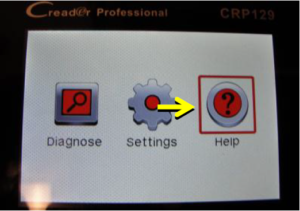
- Power up the tool, place the curser on Help icon and press OK button.(Figure 1)
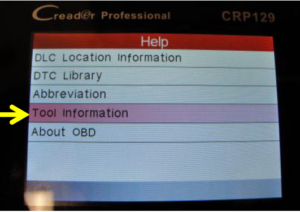
- Select Tool Information press OK. (Figure 2)
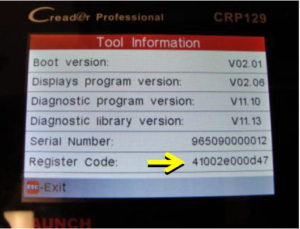
- The default username should be CRP conjuncts with the S/N, for example in Figure 3, the login name is CRP965090000012; The default password is the Register Code, which is 41002e000d47 in Figure 3 for example.
- If you’ve already changed the password and forgot it, please see next step.
- Power up the tool, place the curser on Help icon and press OK button.(Figure 1)
- The follow steps of how to retrieve the password is applied for CRP129, CRP229 and SCANPAD.
-
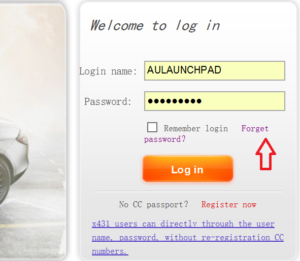
Start a web browser in your computer, visit www.dbscar.com , click Log in button on the top right of the webpage, then will come up a login page. (Figure 4) Then click on the link Forget password. (See red arrow)
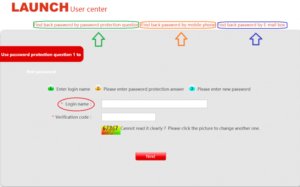
- There are 3 ways to find back password which are by password protection question, by mobile phone (doesn’t work outside China) and by E-mail box. (Figure 5)
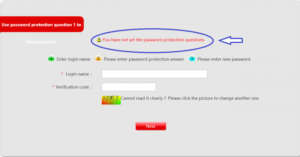
- To use Find Back Password by Password Protection Question, you need to setup Password Protection Question beforehand, otherwise you will get a warning message(Figure 6) .To see how to setup Password Protection Question please refer to Annex A. If you forgot the Login name, please refer to 2.5.
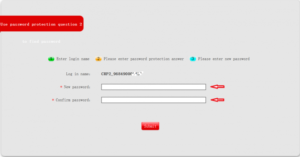
- Type in Login name and Verification code, then click on Next button, then answers the 3 Protection Questions correctly, and then it will come up a new page (Figure 7). You can enter new password then confirm new password on this page. Mission accomplished!
-
If customer even forgot the Login name, try default login name. For CRP-129, the default login name is CRP+S/N, like CRP970795001234 for example; For CRP-229, the default login name is CRP2_+S/N, for example CRP2_968490001234; For SCANPAD, and there is no default login name. You can try the default login name, but since it can be altered by customer, sometimes it is not necessary working.
- Find Back Password by Email Box, the login name can be the username, CC account or Bonded Email (Figure 8). To use the Bonded Email as Login name, customer has to bind their email beforehand. To find out how to bind customer email to the account, please refer to Annex B.
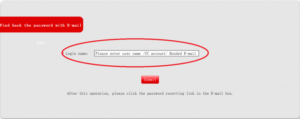
- After click Submit button (Figure 8), a reset link will send to the customer email (Figure 9), if the customer can’t find the email, please check the junk mail box, some email supplier may put the email in it.
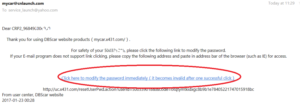
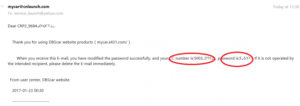
- After click the link, a message box will come up, simply close the message box, Then customer will receive another email giving you the CC number and the new password (Figure 10). Mission accomplished!
- If you still can’t retrieve the password by the above procedures, please email se************@***oo.com ask for help, please kindly include the S/N of the machine in the email.
-
- Appendix A, How to setup Password Protection Question.
- Firstly, login the customer account with username and password (Figure 4).
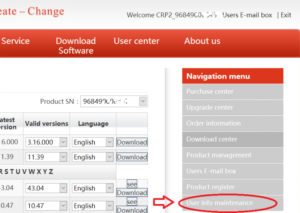
- Click on User Info maintenance (Figure 11).
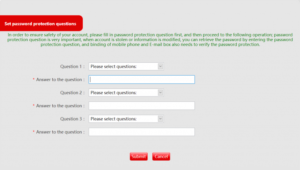
- Pick 3 questions and answer to the questions, click Submit button (Figure 12). Mission accomplished! The customer protection questions are set!
-
Appendix B, How to bind your email to your account.
- Firstly, login the customer account with username and password (Figure 4).
- Click on User Info maintenance (Figure 11).
- You can see email box condition is unbound, click on Bind E-mail box (Figure 12).
Note: After the email is bound, the customer CANNOT change it anymore, so better use a permanent email address to bind.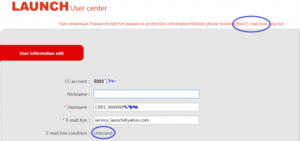
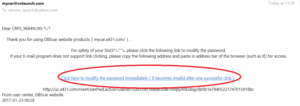
- Then the customer will receive a email, if not, look for it from junk mail box, click on the link in the email (Figure 13).
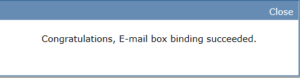
- It will come up a message box, simply click on Close button, the email is bound successfully!(Figure 14).
- For CRP-129, if you’ve never changed the default password, you can follow the next procedures to look up the default login name and password from the Help section of the CRP-129 itself.
Purchase update for CRP129, CRP229 and SCANPAD (Ver. 1.01)
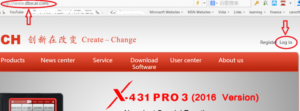
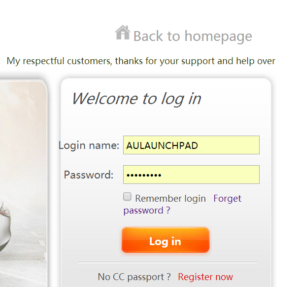
- Start your web browser, visit www.dbscar.com, click Log in. (Figure 1)
- Enter Login name and Password and click on Log in button.(Figure 2)
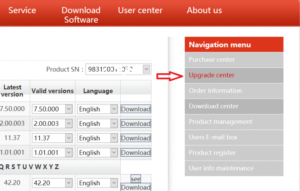
- Click on Upgrade center.(Figure 3)
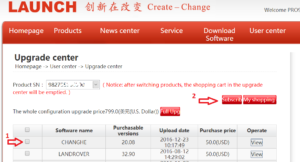
- Customer can update what they choose or whole software package.(Figure 4) To update what you choose, click on the Manufacture (Arrow 1), then click on Subscribe button (Arrow 2).
-
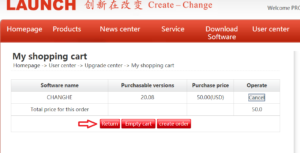
Then it will come up shopping cart page (Figure 5), click Return button, don’t click on other button. Order is generated.
- To update the whole package, click on Full Upg button. (Figure 6)
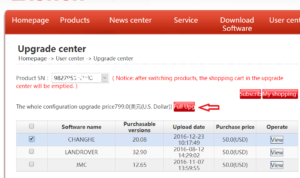
- A message box will come up, click on ok button. (Figure 7)
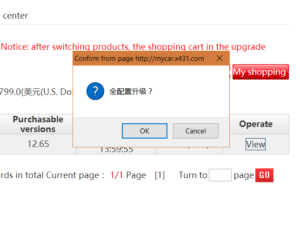
- Then it will come up shopping cart page (Figure 8), click Return button, don’t click on other button. Order is generated.
-
Click on Order information to check order number.(Figure 9)
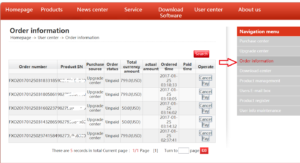
-
Email or call with the Order number and Product SN to Launch Australia 02-8678 5869 to make a payment.(Figure 10)
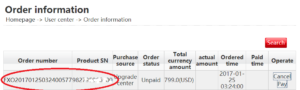
-
After payment and wait for the confirm call from Launch Australia, then your can update your machine.
Note: By Launch Policy, once the payment has been made, there is no refund.
- Start your web browser, visit www.dbscar.com, click Log in. (Figure 1)
CRP-129 message “Missing system files” Fix
- Symptom: Machine turns on, but message coming up “Missing system files”(Apply to CRP129)
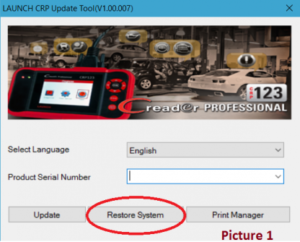
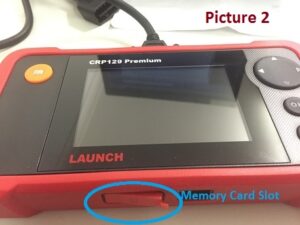
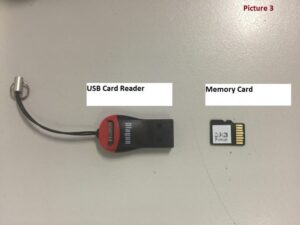
- Update software first, take the memory card out from the CRP-129, put it in a USB card reader, put it in the USB port of a computer, then run CRP Update Tool (Picture 1), the username should be the Serial number and the password should be the register code. Please refer to CRP_Registration_Process.pdf. You can download CRP Update Tool and the PDF file from http://www.dbscar.com
-
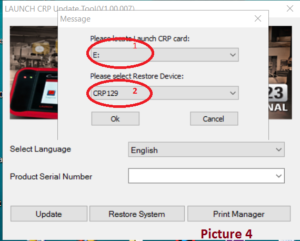
With the USB reader still connect to the computer, please click the Restore System button on the CRP Update Tool screen(Picture 1), the window(Picture 4) should come up, then pick the right memory card drive(circle 1) and the right device(circle 2), then press OK button.
- Put the memory card back to the CRP-129, turn it on and the screen prompt “Do you want to update system file”, just press Yes button and wait for the process finish.
- Normally the problem should be fixed, if still have the same problem, it could be hardware issues, please send it back for further inspection.
- Update software first, take the memory card out from the CRP-129, put it in a USB card reader, put it in the USB port of a computer, then run CRP Update Tool (Picture 1), the username should be the Serial number and the password should be the register code. Please refer to CRP_Registration_Process.pdf. You can download CRP Update Tool and the PDF file from http://www.dbscar.com
- Symptom: Machine turns on, but message coming up “Missing system files”(Apply to CRP129)
CRP229 the Home key doesn’t work. (Apply to CRP-229 S/N starts with 968490…)
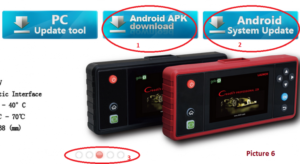
- Please visit www.dbscar.com , download and install the Android System Update Software “CRP229_HOME_KEY.exe” to your computer, (see Picture 6, circle 2).
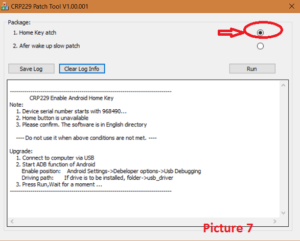
- Connect the CRP-229 to your computer with the USB cable, which is in the kit, run CRP229_HOME_KEY.exe”, see Picture 7. Press Run button and wait for the process finish.
- Restart and test the CRP229 again, the Home Key problem should be fixed, if still have the same problem, it could be hardware issues, please send it back for further inspection.
CRP229 Become slow after wakeup from sleep
Symptom: Become very slow after wakeup from sleep. (Apply to CRP-229 S/N starts with 968490…)
- Please visit www.dbscar.com , download and install the Android System Update Software “CRP229_HOME_KEY.exe” to your computer, (see Picture 6, circle 2).
- Connect the CRP-229 to your computer with the USB cable, which is in the kit, run CRP229_HOME_KEY.exe”, see Picture 7. Press Run button and wait for the process finish.
- Restart and test the CRP229 again, the Home Key problem should be fixed, if still have the same problem, it could be hardware issues, please send it back for further inspection.
PRO/PRO3/SCANPAD, CRP229 WIFI not working
Symptom: WIFI not connecting. (Apply to CRP229 and SCANPAD).
Before sending the machine back, please try to connect the machine to a different network with strong signal and no other users on it to test if the machine if WIFI faulty.
If still have the same problem, it could be hardware issues, please send it back for further inspection.PRO3/PRO/SCANPAN Diagnose running very slow
Like other hand held device using Android OS, after a period of use the scanner become very slow. To fix this problem, we have to reset the tablet and reinstall every thing back to the tablet again, below is the procedure of how.
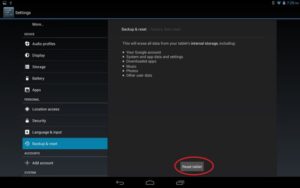
- Reset the tablet to factory setting. Backup you tablet before reset the tablet if you have important data.
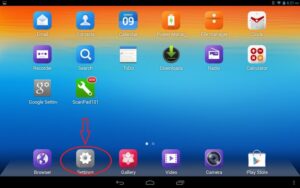
- Click Setting button (Fig. 1)
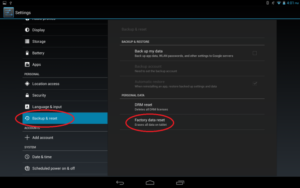
- then Backup&Reset button (Fig. 2)
- then Factory data reset(Fig. 2, Fig. 3)
- the machine will restart, and you just follow the prompt to initial the tablet such as language, location and wifi setting etc.
- Reinstall X431 PRO3/PRO/SCANPAD APP.
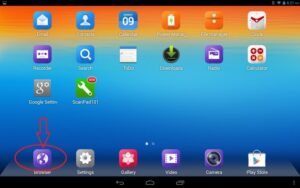
- Start web browser, then go to www.dbscar.com or www.launchtech.com.au (fig.4)
- Download and install the APK according your X431 model (fig. 5).
-
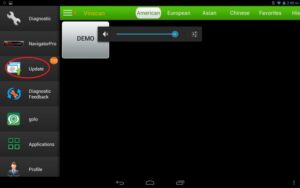
After reinstall the APP, the machine maybe ask you update the APP again when you run it, just press OK to update the APP, then run the APP and update the software (Fig. 6), this will redownload all the car mades back to the tablet. If you forgot the username and password, please read the other post in the FAQ section.
- Power up the DBScard Connector (Plug in a car), run random one of the software to link the connector to the tab
- Reset the tablet to factory setting. Backup you tablet before reset the tablet if you have important data.
How to fix “Please activate connector” problem
How to fix “Please activate connector” problem for POR/PRO3/SCANPAD, CRP229 and Idiag
If you have Please activate connector message come up on the screen and you already registered your machine, this means the account you logged in is NOT for this machine, so please find out the right username and password for your machine.
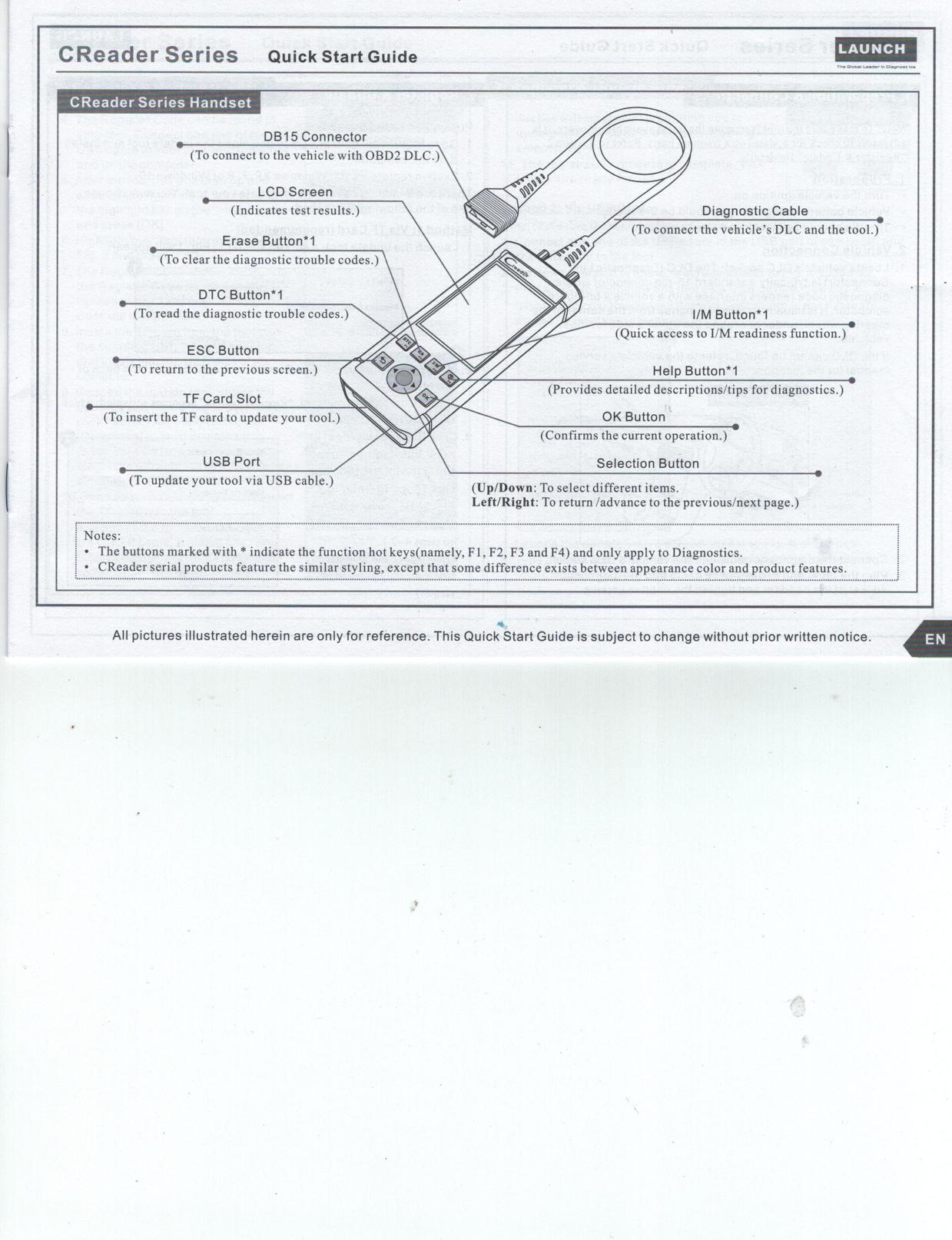
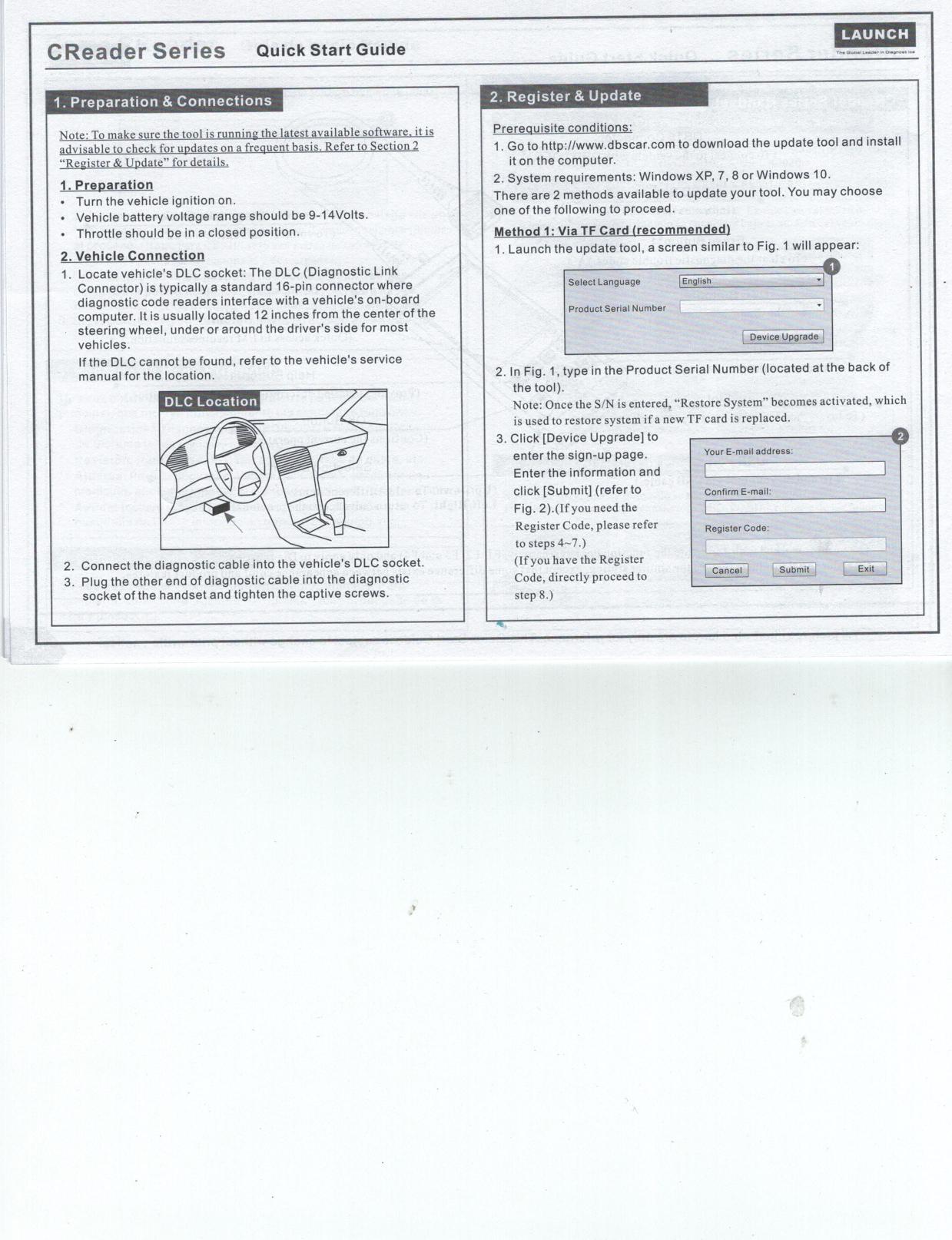
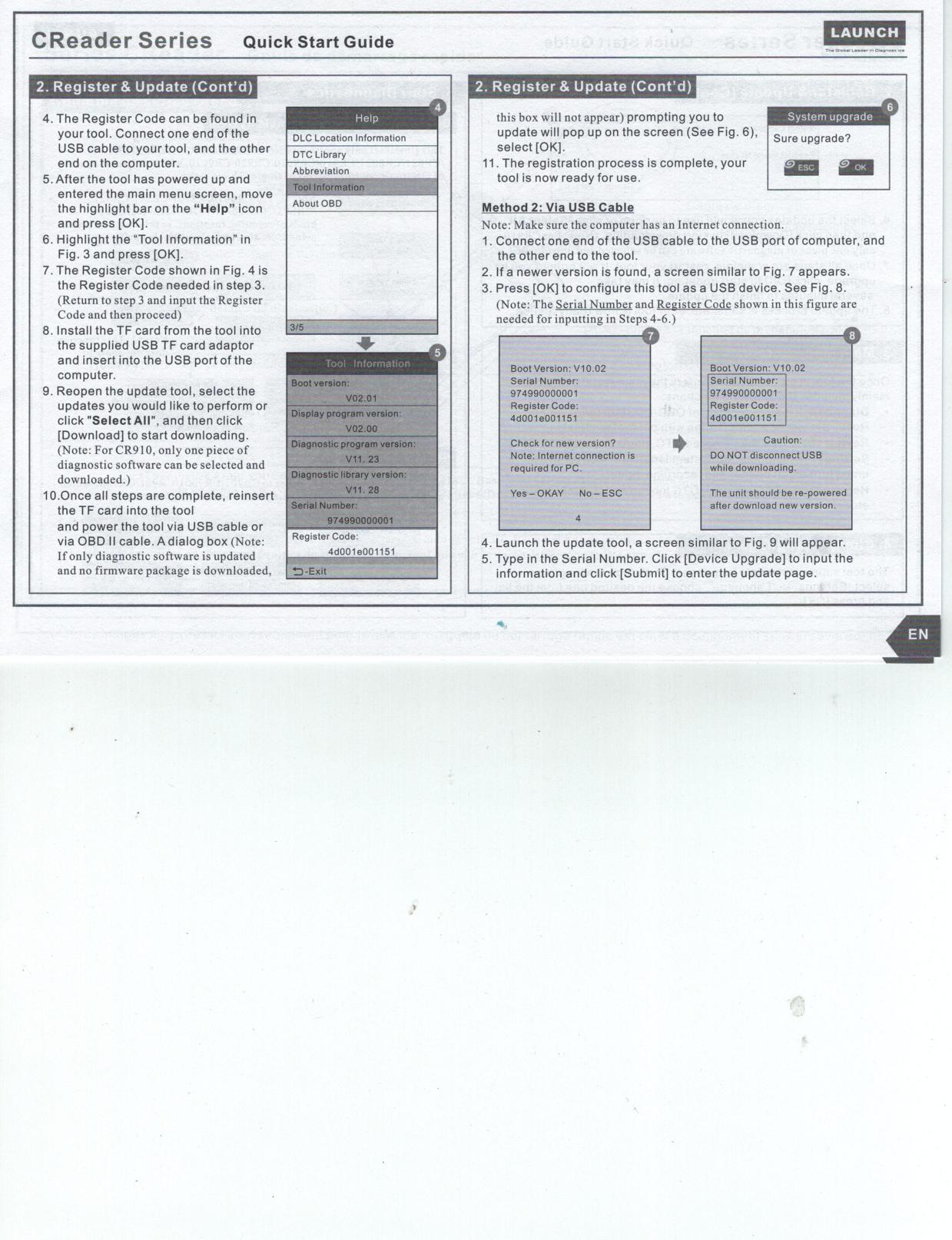
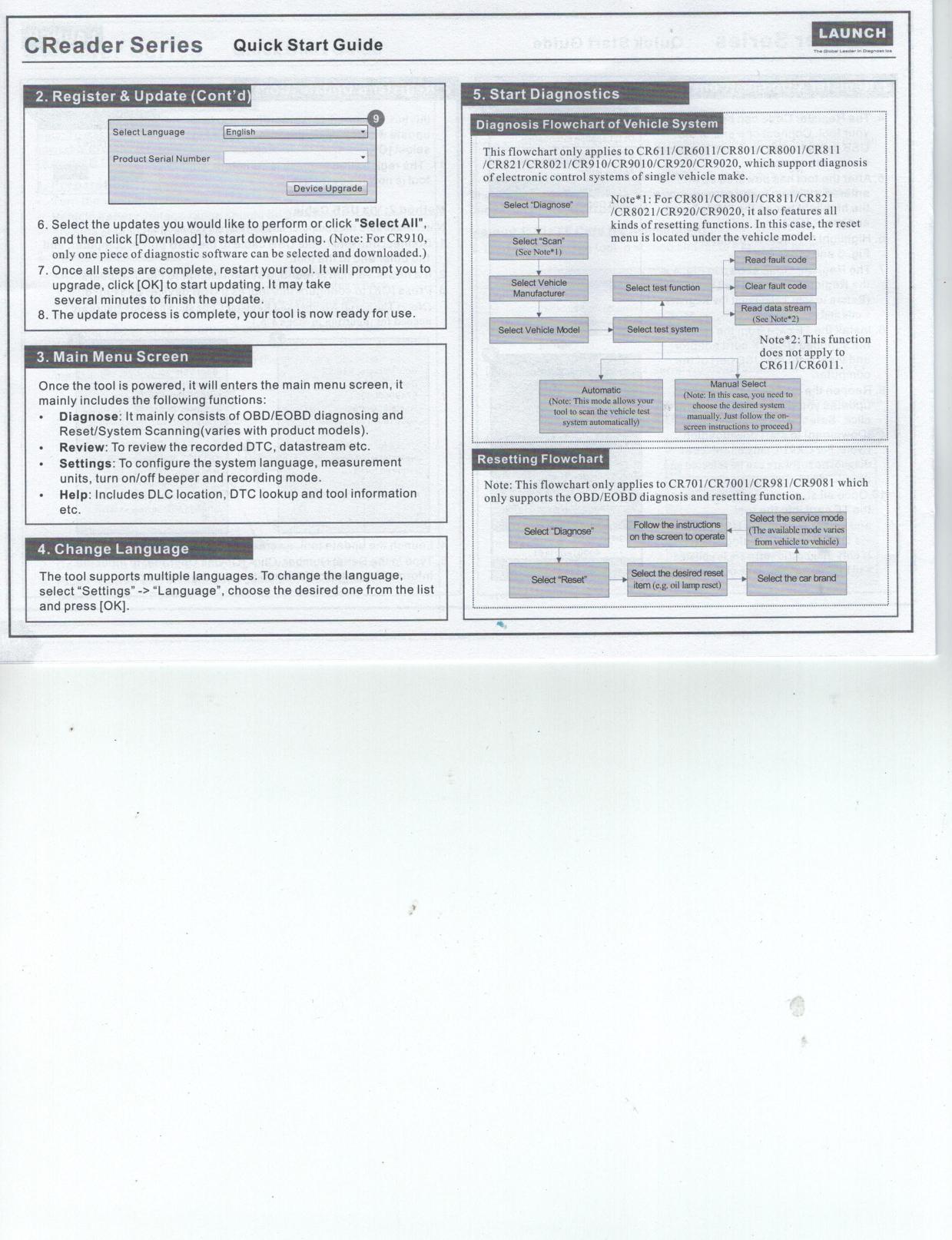
CRxx Update Manual
Additional Questions?
If you still have questions or need personalised assistance, feel free to contact our team using the form below. We’ll get back to you as soon as possible.